



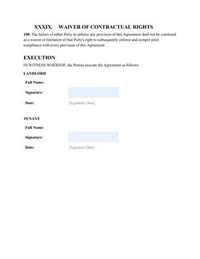
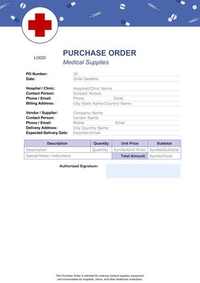
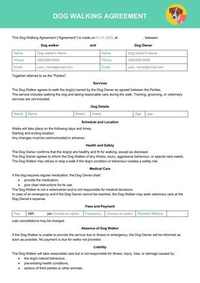
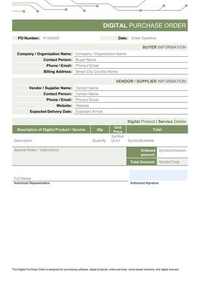

Image to Text Converter
By uploading a file, you agree to our Terms of Use and acknowledge our Privacy Policy.
Drag & drop your PDF or IMAGE files here
or
Size up to 100 MB
How to convert image to text online

1
To continue using TheBestPDF, choose one of our subscription plans.
2
Upload your image by dragging it onto the page or browsing to the file on your device.
3
Our OCR tool scans the image and extracts the text, preserving the content as digital text.
4
Copy the extracted text directly or download it as a text file, saved to your account.
What you can do with our image to text tool
Whether you need to pull a JPG to text, grab content from a screenshot, or digitize handwriting, our picture to text converter handles the work in your browser.
Extract text from screenshot. Grab copy, error messages, or data from any screen capture without retyping.
WhatsApp and chat images. Pull text from picture messages or chat screenshots for records or reference.
Why use our image to text converter

No installation
Our OCR online converter runs in your browser, so there is nothing to set up before you start.
Broad format support
Upload JPG, PNG, WebP, TIFF, BMP, and other common image formats without converting first.
Copy or export
Take the extracted text straight to your clipboard or save it as a file from your account.
Precise OCR results
OCR technology reads printed and many handwritten characters reliably across dozens of scripts.Frequently asked questions
Our image to text converter accepts JPG, PNG, WebP, TIFF, BMP, AVIF, HEIC, GIF, and SVG files. Most photos you take on a phone or export from a document will fall into one of these formats, so you can usually upload straight from your camera roll or downloads folder without any prior conversion.
Yes. The OCR tool can process handwritten text, though accuracy depends on how clearly the writing is formed. Neat, consistent cursive or print handwriting converts well. Heavily stylized or very faint script may produce some errors, so it is worth reviewing the extracted text before you use it.
Our OCR image to text tool recognizes text in more than 90 languages, covering Latin, Cyrillic, Arabic, CJK, and other scripts. When you upload an image, the tool detects the language automatically, so you do not need to select it manually before running the conversion.
Accuracy depends largely on the quality of the source image. A high-resolution scan or a clear phone photo of printed text will convert with very high accuracy using modern optical character recognition. Low-resolution images, heavy compression artifacts, or awkward angles reduce accuracy, so a straight-on, well-lit photo gives the best results.
Yes. JPG is one of the most common formats our photo to text converter handles. Upload your JPEG file, and the OCR tool reads the characters in the image and returns editable digital text. The process works the same whether the JPG came from a scanner, a phone camera, or a downloaded file.
You can. Our picture to text converter applies character recognition to handwritten content as well as printed text. Scan or photograph your notes and upload the image. Results are best when the handwriting is consistent and the page is evenly lit, with the camera held directly above the paper rather than at an angle.
The tool uses optical character recognition, commonly called OCR, to analyse the pixel patterns in your image and identify individual characters. It maps those characters to a standard text encoding, then returns the result as editable text you can copy, edit, or download. The entire process runs online, so nothing is installed on your device.
Yes. Screenshots are among the most common inputs for an image to text generator. PNG to text conversion works directly — PNG is the default format for most operating systems' screenshots, and our converter handles it without any prior steps. Take your screenshot, upload it, and the tool pulls out any readable text it finds, including menus, error messages, and body copy.
The OCR tool is designed to handle documents in one primary language per run. If your image contains text in two different scripts or languages side by side, accuracy may vary in the secondary language. For best results with multilingual content, separating the sections into individual images before running them through the converter to text is advisable.
Our image to text tool extracts the text content from an image and returns it as plain digital text. It does not replicate columns, fonts, or complex page layouts. If preserving layout is important for your document, our PDF tools may be a better fit for structured files — check our website for available tools.
You can cancel anytime in Account > Billing, or contact support, and we'll help.
Edit PDFEdit PDFSign PDFDelete PagesCrop PDFMerge PDFMerge ImagesSplit PDFCompress PDFCompress ImagesPDF OCRScan to PDFRemove WatermarkUnlock PDFEnhance ImageInvoice Generator




© TheBestPDF. All rights reserved 2026.Xafenil Limited, 1 Apriliou 2A, 4630 Erimi, Limassol, Cyprus.