






Drag & drop your file
or
Size up to 100 MB
How to scan a document into PDF format

1
To continue using TheBestPDF, choose one of our subscription plans.
2
Upload your scanned image file — JPG, PNG, or a multi-page scan — by dragging it in or browsing your device.
3
Our PDF scanner handles scan and OCR together — converting the image to a PDF and making the text searchable.
4
Download your finished PDF document, or find it saved in your account for later access.
What you can scan and convert
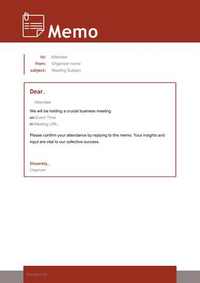
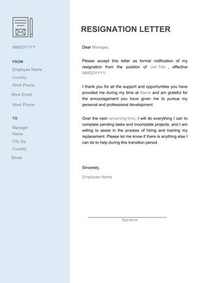
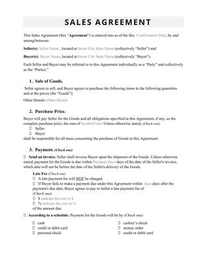
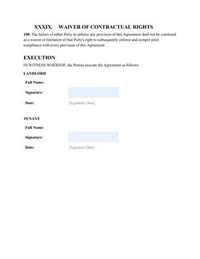
From a quick phone camera snap to a formal multi-page scan, our document scanner handles the files professionals deal with every day.
iPhone scan to PDF. Photograph a document with your iPhone and convert it straight to a PDF.
Scan to PDF on Android. Use your Android as a phone scanner to PDF — no extra app required.


Why use our scan-to-PDF tool

Searchable output
OCR reads 90+ languages, so the text in your scanned PDF is selectable and searchable.
Image formats accepted
Upload JPG, PNG, or other image formats — the converter handles the rest without extra steps.
Reorder pages
Rearrange scanned pages before you finalize the PDF, so the document runs in the right order.
Works in your browser
No installation required — scan documents to PDF on any device with a modern browser.Frequently asked questions
Yes. Upload several image files at once and our tool combines them into a single PDF document. You can reorder the pages before you download, which is useful when multi-page PDFs from scans come off the scanner out of sequence, or you are digitizing a long contract page by page.
Yes. After converting your image to a PDF, our built-in OCR runs over the page and extracts the text, making the file searchable and selectable. OCR covers 90+ languages, so it works on documents that are not in English, including handwritten notes where the handwriting is reasonably clear.
Either works. A traditional flatbed or document scanner produces a clean image file you can upload directly. A phone camera can be used as a mobile scanner, working just as well for most documents — photograph the page, save the image, and upload it. Scan to PDF on iPhone or Android follows exactly the same process: upload the photo, convert, download the PDF.
For phone camera scans, use your camera's auto crop feature if it has one, and straighten scans so the edges align with the frame — this avoids perspective distortion in the final PDF. Place the document on a flat, evenly lit surface and hold the phone directly above it. Natural light from the side tends to create fewer shadows than overhead artificial lighting. For a physical scanner, clean the glass plate regularly — dust and smudges are the most common cause of marks on high-quality PDFs.
Most phone camera apps and scanner apps save images as JPG by default. To get a PDF, upload that JPG to our scan-to-PDF tool and it converts the image to a proper PDF document. If your scanner software has a 'save as PDF' option, you can use that too — either way, the resulting PDF file works identically.
Yes. Once you download the converted PDF, you can attach it to an email like any other file. PDF is the standard format for sharing scanned documents because it preserves layout and is readable on every device. If the file is large, our PDF compressor can reduce the size before you send it.
Yes. Once the scanned image is a PDF, you can open it in our PDF editor to add annotations, text, or other markup. If OCR was applied, you can also work with the extracted text directly. This makes it straightforward to review a scanned contract or add comments to a client document before sending it on.
After conversion, you can download the PDF directly to your device. From there, attach it to an email, upload it to a cloud storage service, or share it however you normally share files. The PDF document is a standard file — nothing about it is tied to TheBestPDF once you have downloaded it.
You can cancel anytime in Account > Billing, or contact support, and we'll help.
Edit PDFEdit PDFSign PDFDelete PagesCrop PDFMerge PDFMerge ImagesSplit PDFCompress PDFCompress ImagesPDF OCRScan to PDFRemove WatermarkUnlock PDFEnhance ImageInvoice Generator




© TheBestPDF. All rights reserved 2026.Xafenil Limited, 1 Apriliou 2A, 4630 Erimi, Limassol, Cyprus.