Invoice Generator

Create a clear, itemized bill that makes every charge and due date easy to check.

01Your Invoice
02From
02To
03Items
Description
Qty
Price
Amount
$0.00
04Totals
%
$
$
05Notes and terms
06Signature

Whichever tab is open is what prints on the document.

How to create an invoice

Use our invoice maker to build an itemized client bill in three easy steps.

1

Enter the invoice details

Add your logo, invoice number, invoice date, due date, and contact details for both sides.

2

Itemize the charges

Use our invoice builder to list each product or service. Add the quantity and rate, then pick the currency and payment method.

3

Review and download

Review the totals, notes, terms, and signature in the preview before you download the invoice as a PDF.

What is an invoice?

An invoice is a document that asks a customer to pay for goods or services. It identifies the sender and client, breaks down each charge, sets a due date, and gives payment instructions. This online invoice generator keeps those details in one place. The preview lets you check each itemized invoice before downloading it. Our professional invoice tool works well when you need one bill instead of a full invoicing system.

Key takeaways

Key Takeaways

  • An invoice asks for payment for agreed goods or services
  • Line items show how the subtotal and final amount add up
  • The due date and payment terms tell the client when to pay

What to include on an invoice?

  • Business identity

    Add a logo and pick invoice as the document type.

  • Invoice number and dates

    Enter the invoice number, invoice date, and due date.

  • Your contact details

    Give the sender's name or business name, address, email, and phone number.

  • Client details

    Give the recipient's name or business name, address, email, and phone number.

  • Itemized charges

    List each product or service with its description, quantity, rate, and amount.

  • Currency and totals

    Choose the currency, then check the subtotal, tax, discount, shipping, total, and balance due.

  • Payment method

    Record cash, card, check, PayPal, or bank transfer, without processing any payment.

  • Notes, terms, and signature

    Add payment terms or other notes, then complete the signature block on the invoice.

Invoice templates

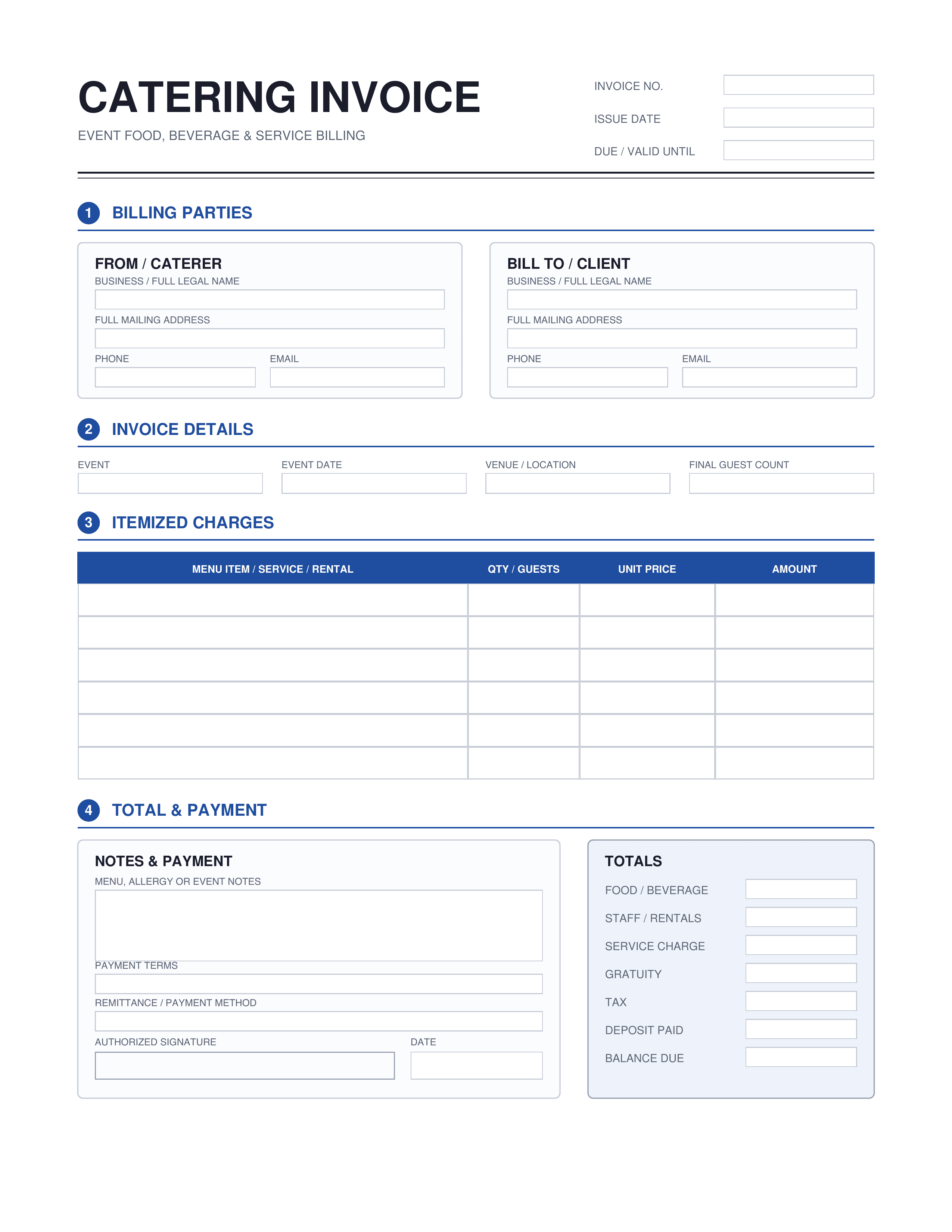
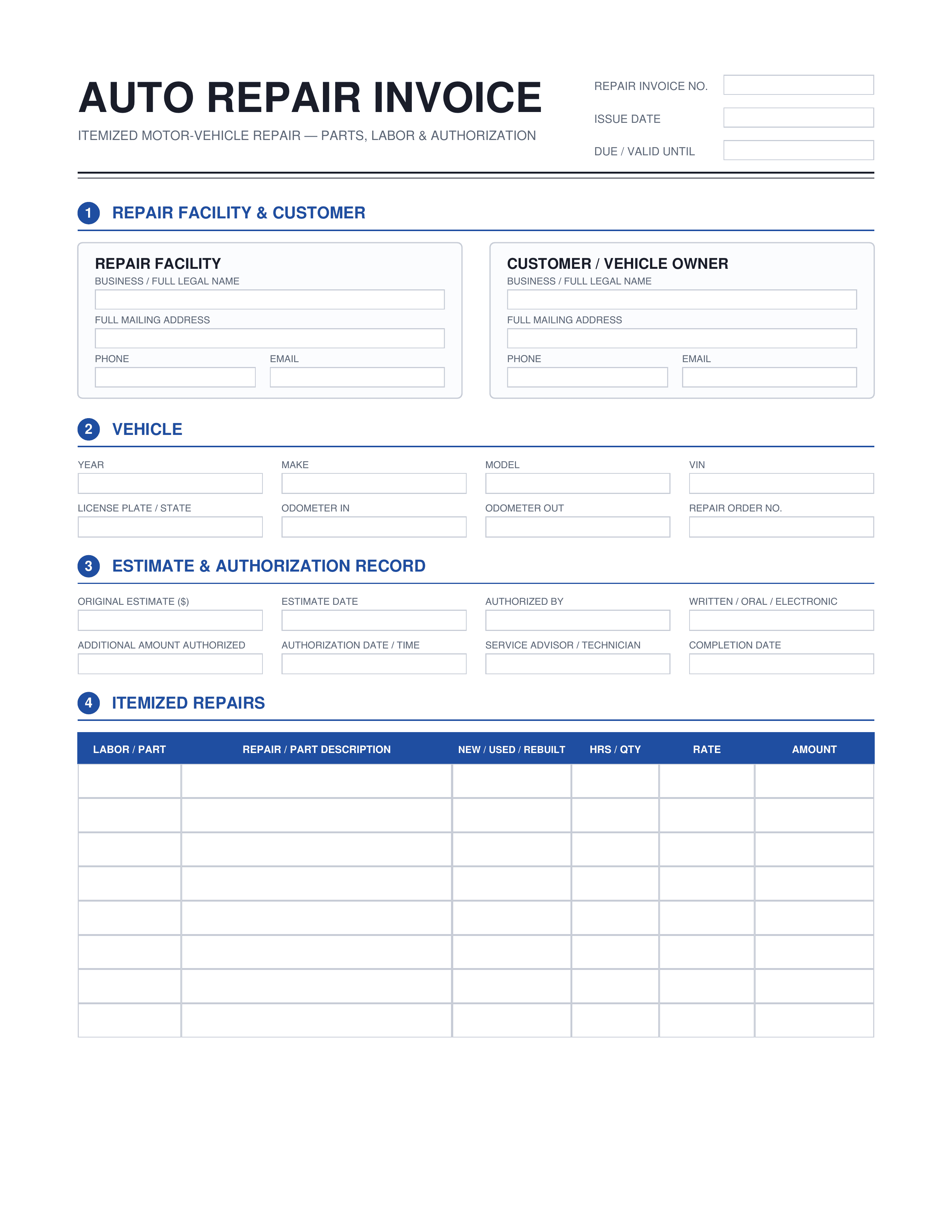
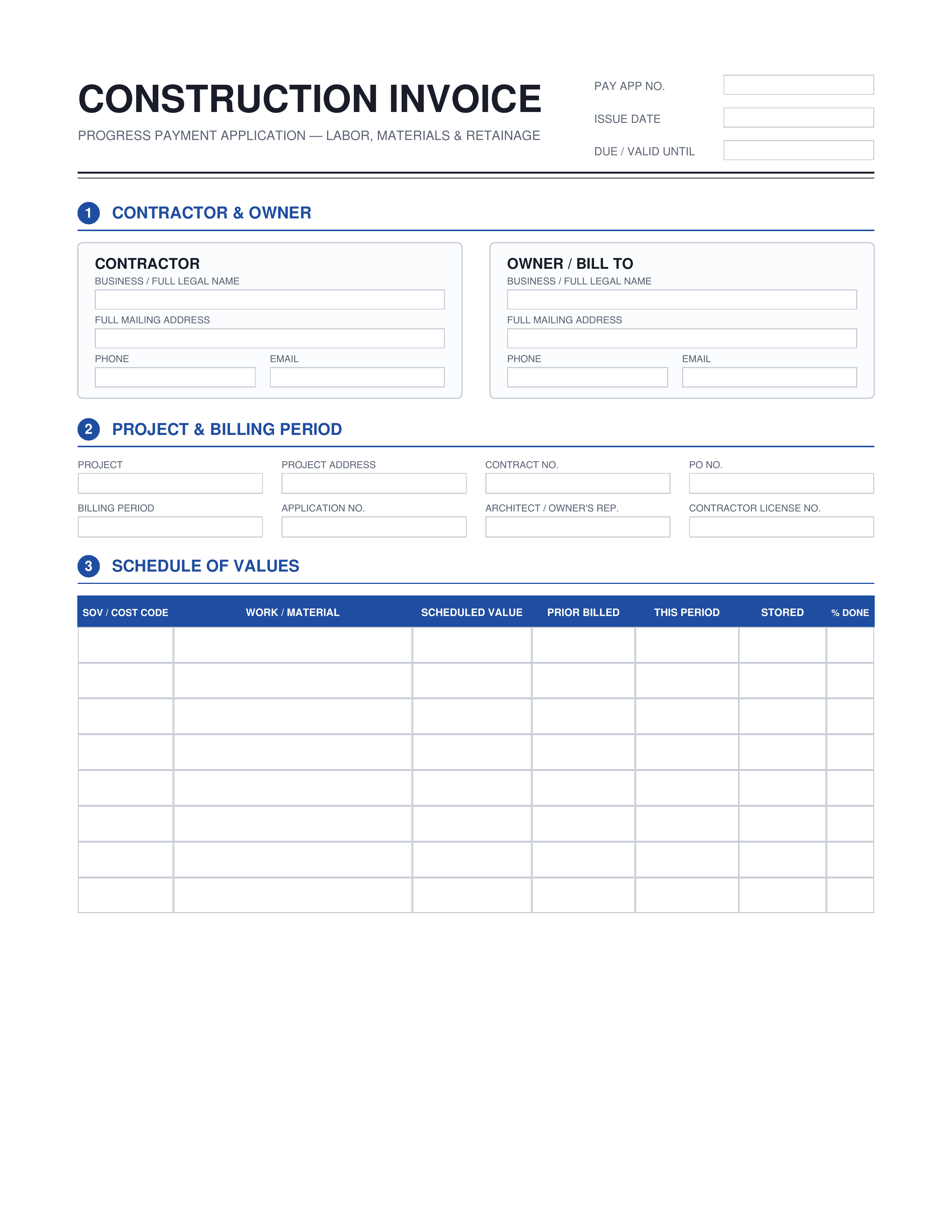
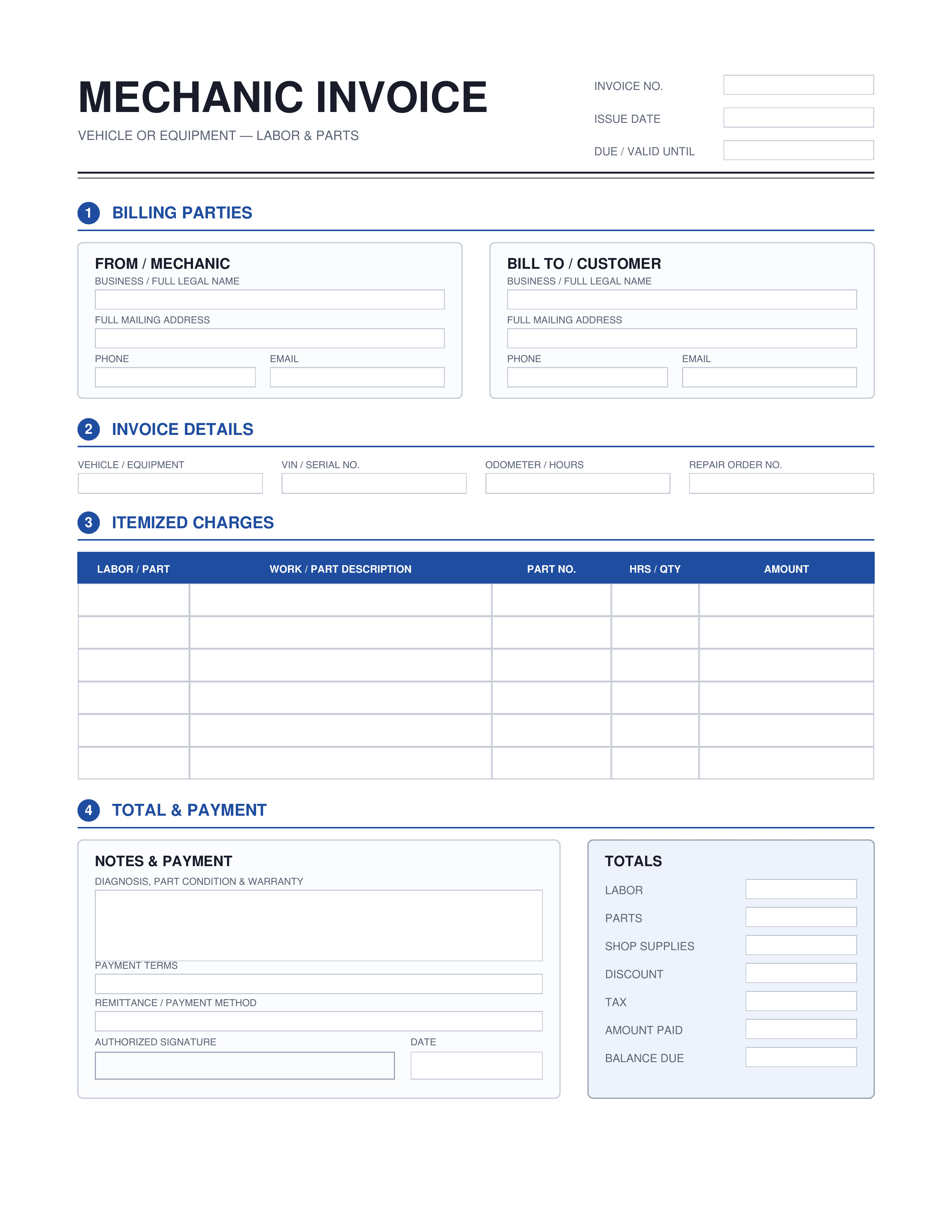
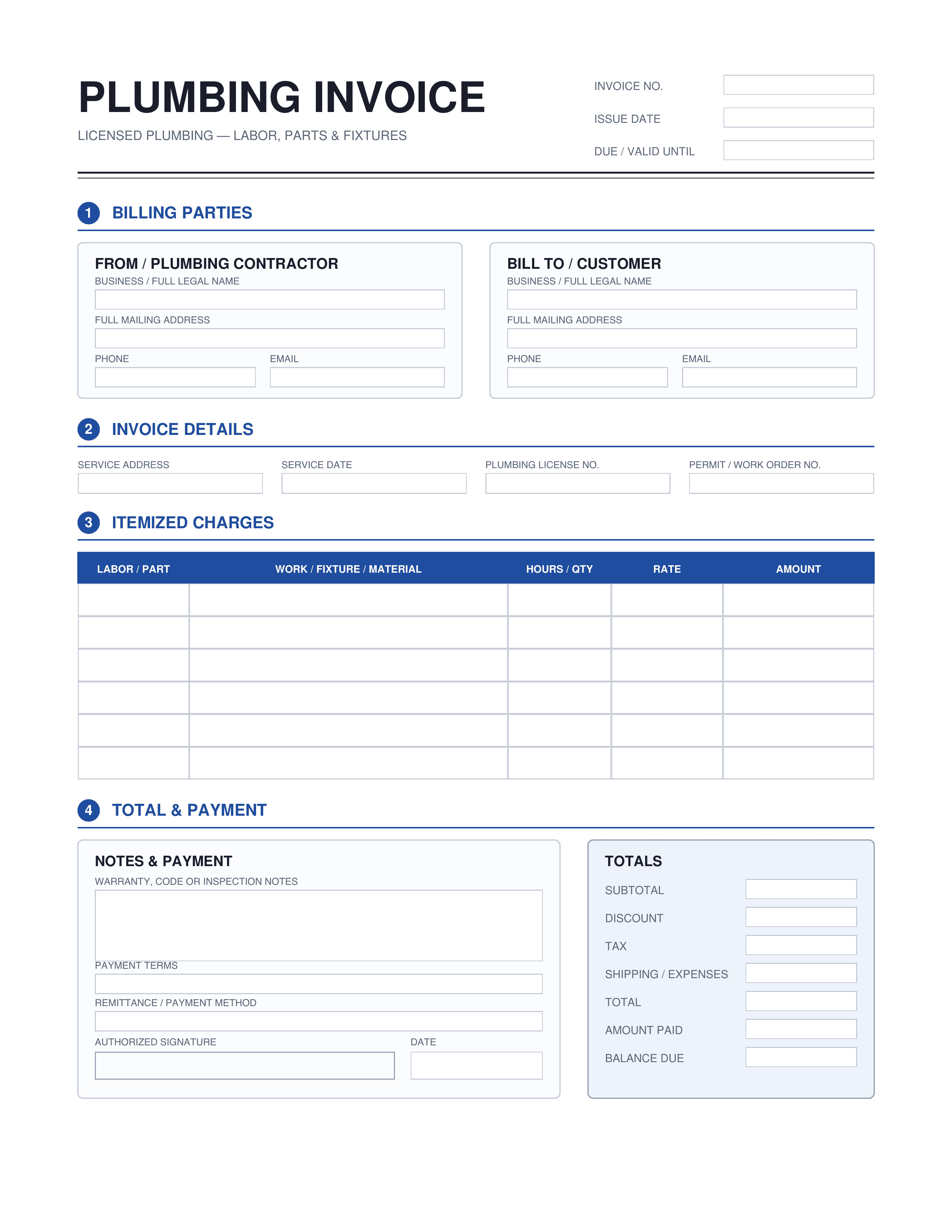
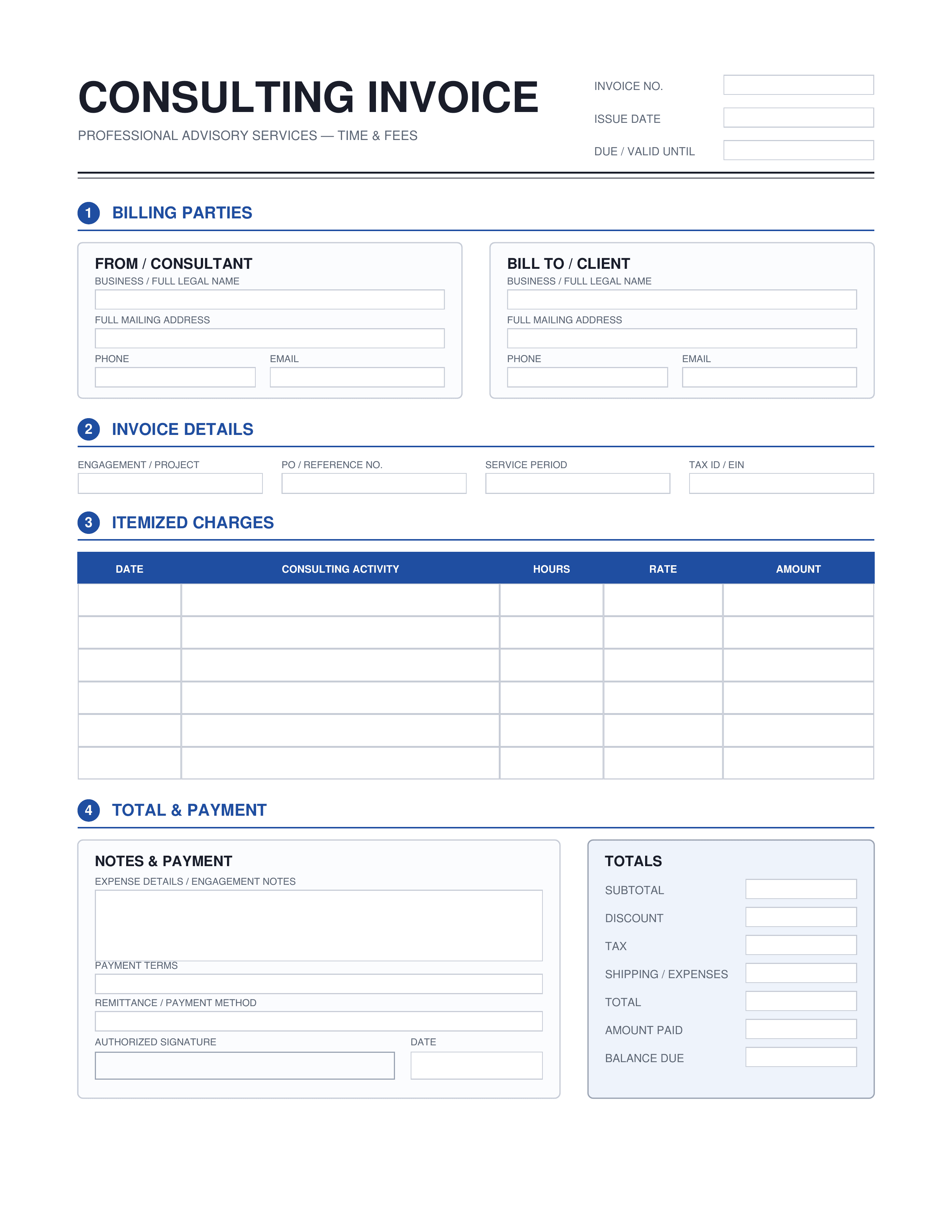
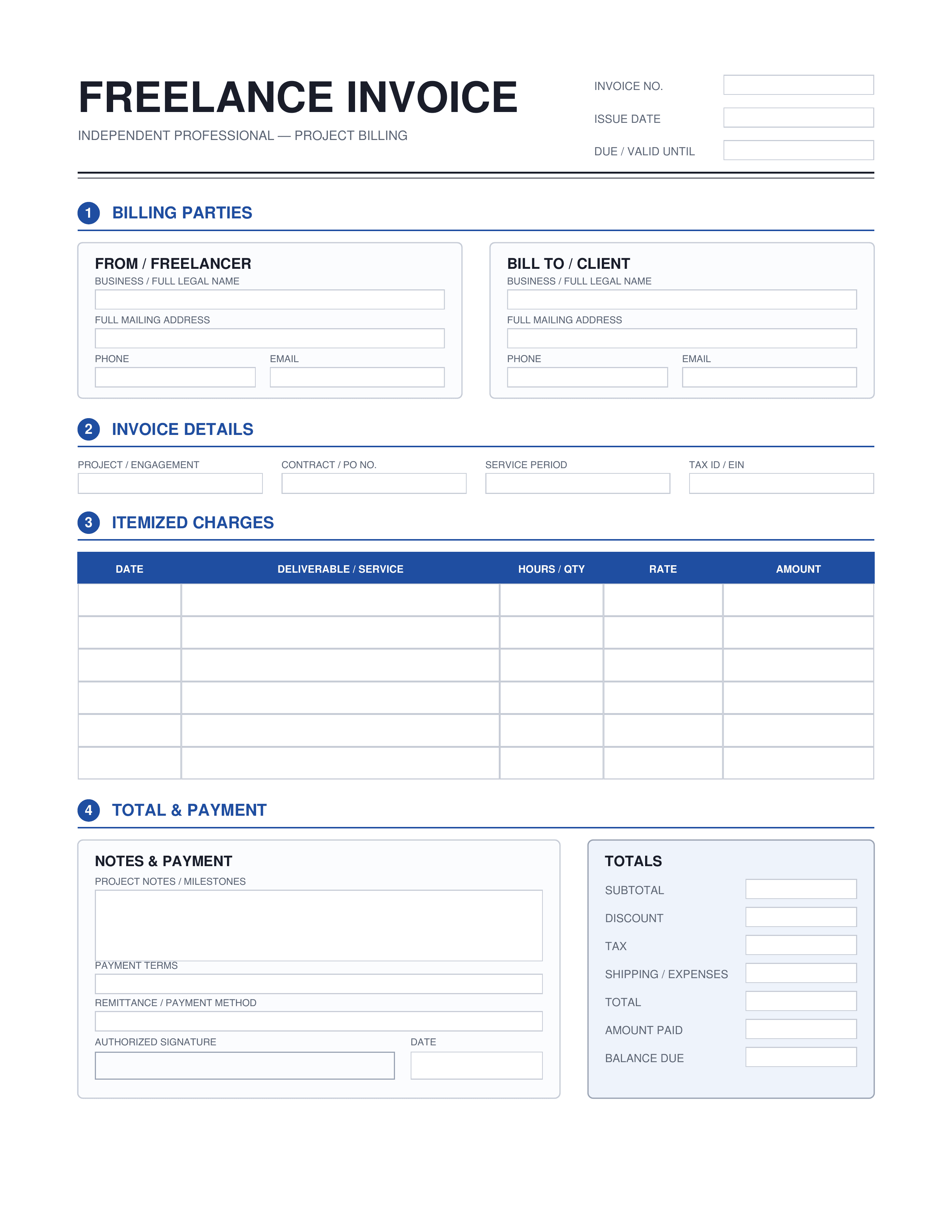
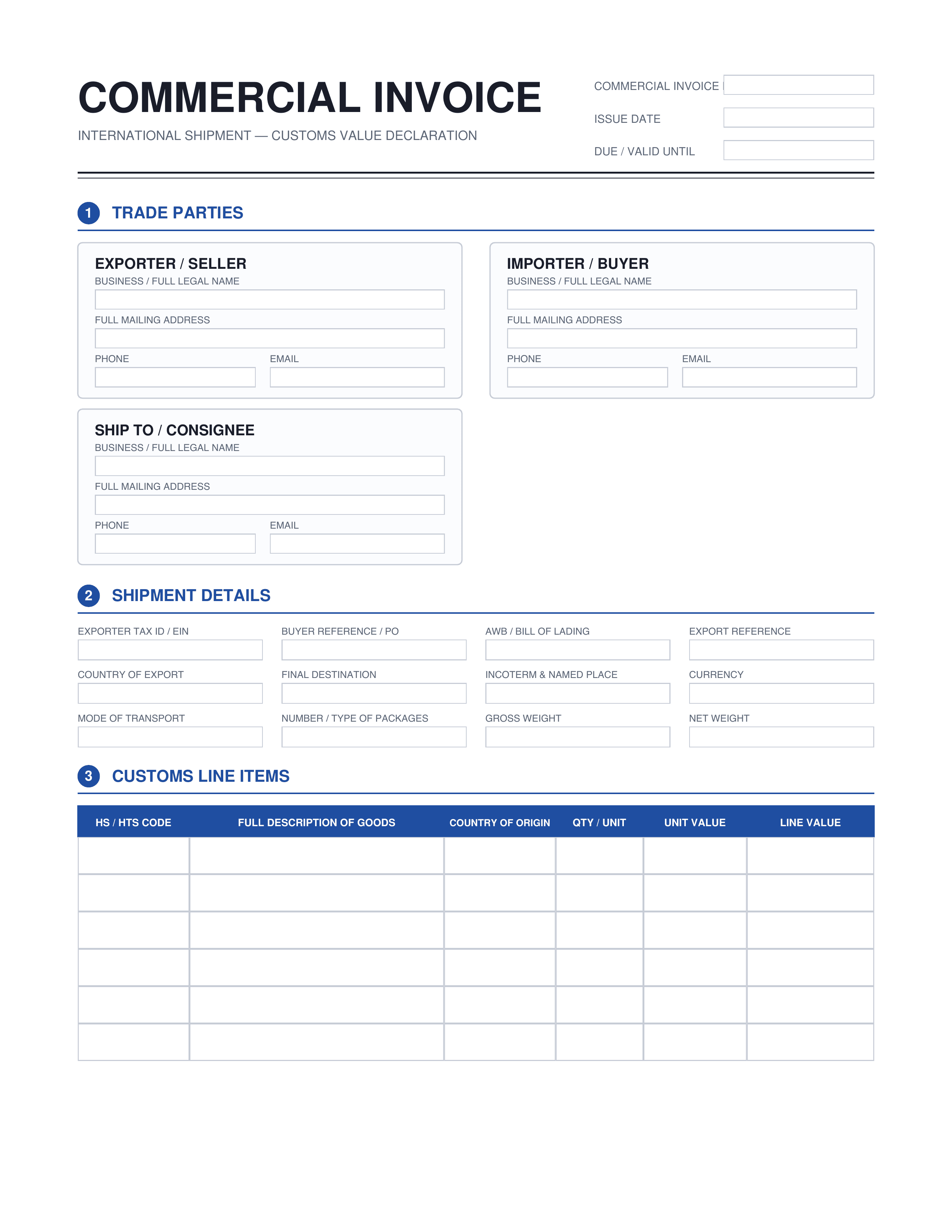
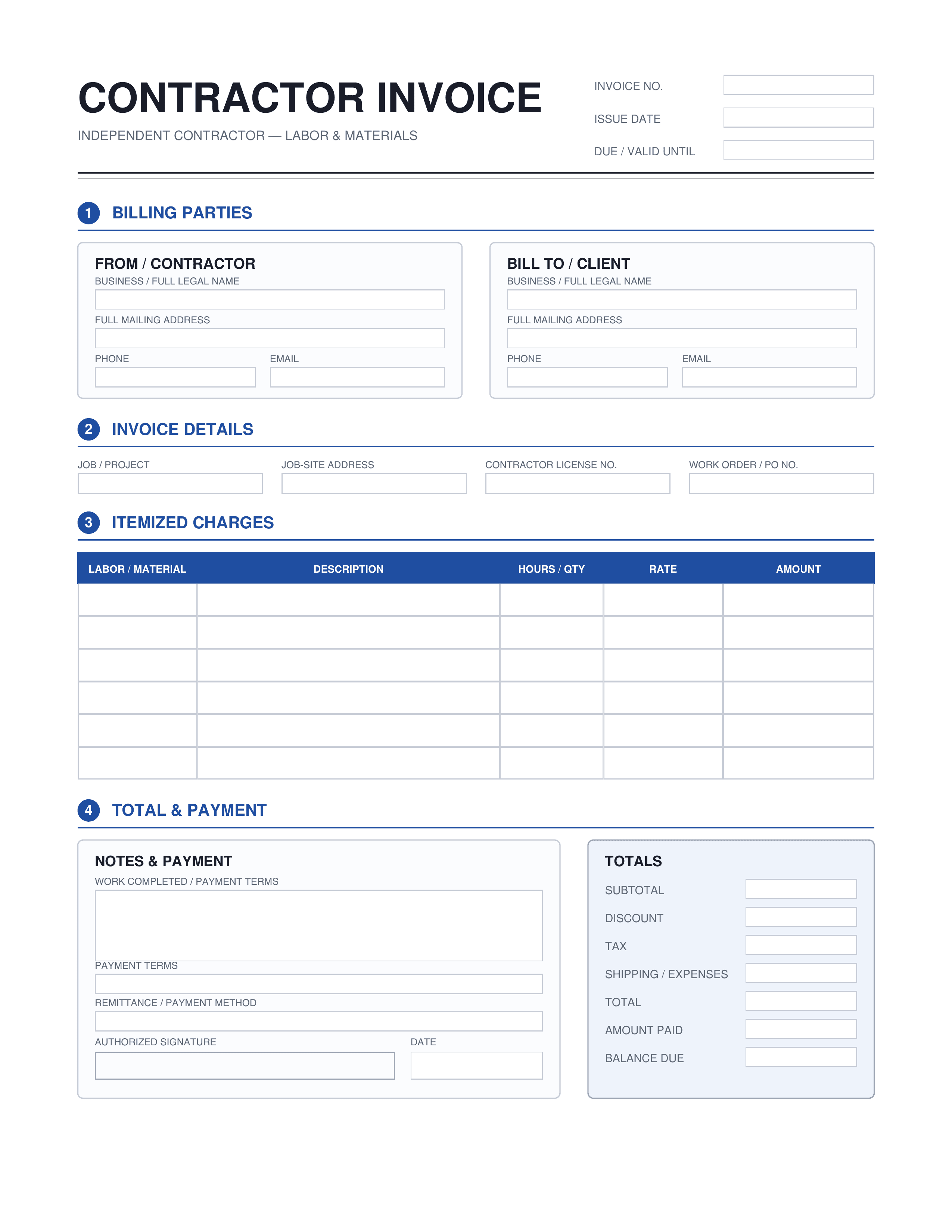
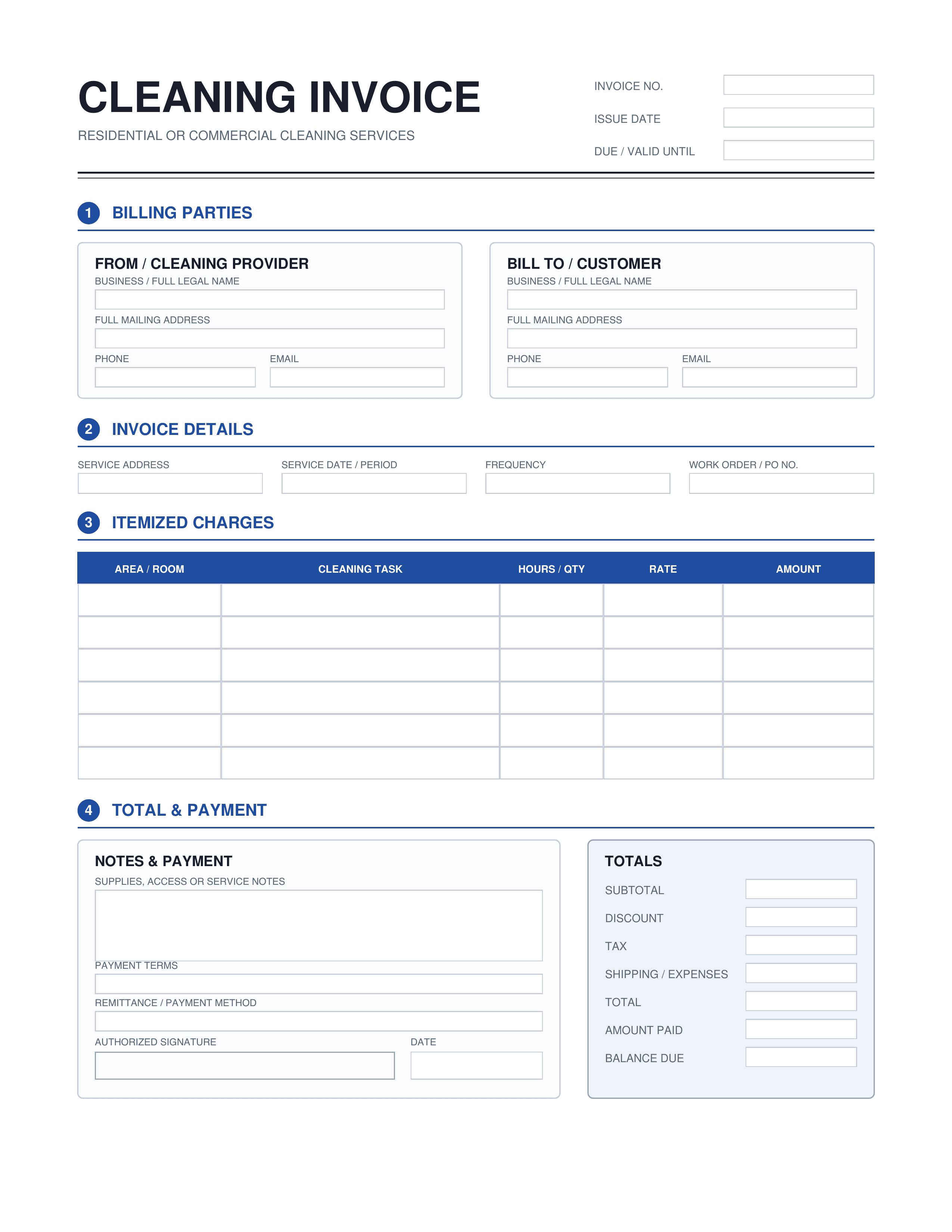
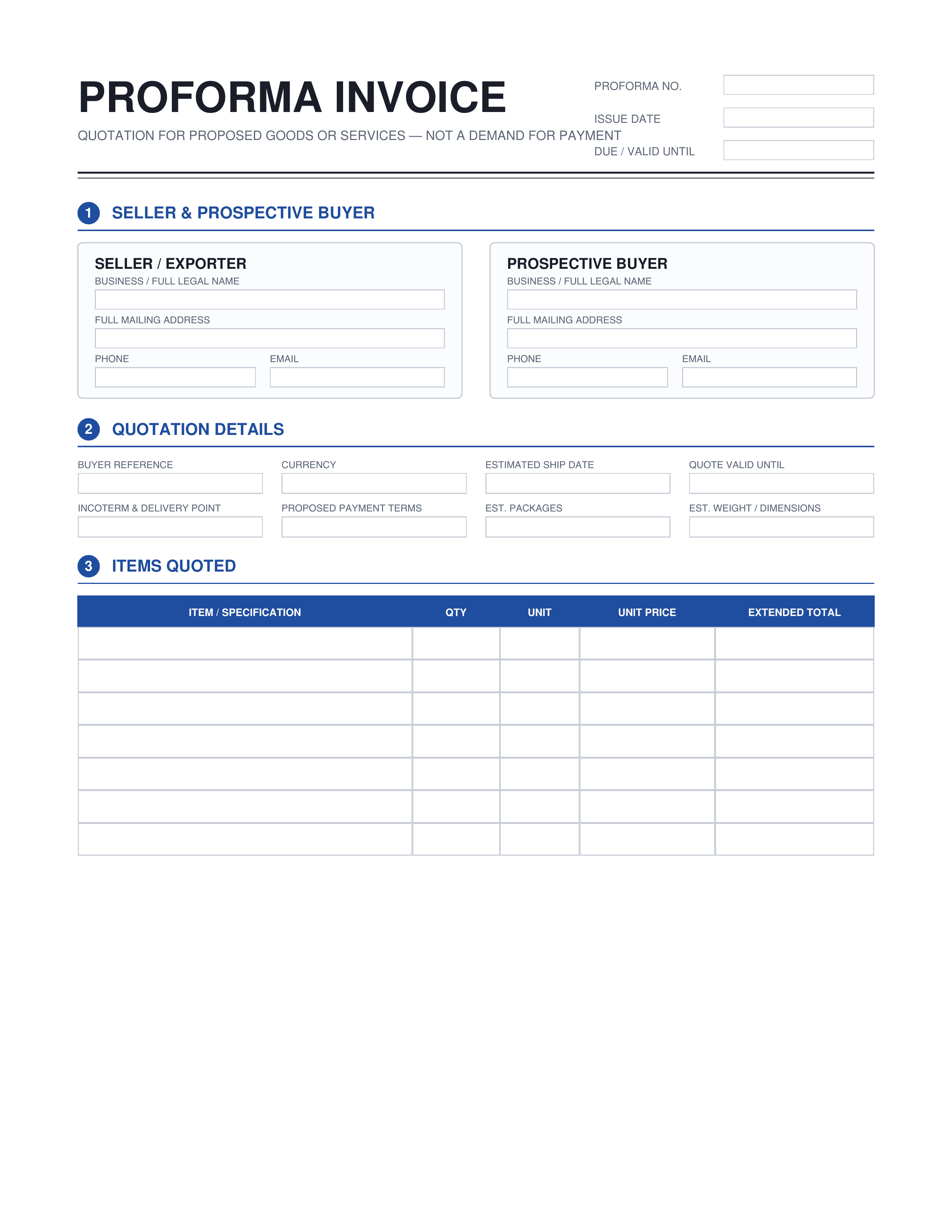
Different jobs call for different invoice layouts. When you create online invoice documents, a suitable template gives you a clear starting point. Choose a layout designed for your services, products, terms, and client details.
Frequently asked questions

An invoice number is a unique reference for a specific bill. It helps you and your client match the document to payment records. If a question comes up later, the number makes the right invoice easy to find. Add it to the header and use a consistent format instead of relying on names or dates alone.

An invoice requests payment for a balance that is still due. A receipt, by contrast, confirms that payment has already been made. Since they serve different stages of a sale, an invoice includes a due date and payment terms. It also shows the balance the client still needs to pay.

A typical invoice starts with the sender's name, invoice number, invoice date, and due date. Next, it names the client and lists goods or services in rows, with descriptions, quantities, rates, and amounts. A summary shows subtotal, tax, discount, shipping, total, and balance due. Notes, terms, payment details, and a signature follow.

Payment terms explain when and how the client should pay. They can include the due date, payment method, and other agreed conditions. Add the terms to the notes section after you confirm them with the client. Make sure they match the date and payment details shown elsewhere on the invoice.

The payment period depends on your agreement with the client and any law that applies. Since there is no single deadline for every sale, set a clear due date. Add that date to the header, then repeat any key conditions in the notes. This helps the client know exactly when payment is expected.

Yes. Choose the currency for the transaction before you review the line items and totals. It applies to each rate and amount shown on the invoice. The same currency also covers the subtotal, tax, discount, shipping, total, and balance due. Confirm that it matches your agreement before downloading the PDF.

Yes. Add your logo in the header beside the invoice number and dates. Our invoice creator shows how it will look with your business name and contact details. This gives the finished document a clear and consistent sender identity. You do not need a separate design tool to place the logo.

Yes. The pricing summary includes separate fields for subtotal, tax, discount, shipping, total, and balance due. Enter only the values that apply to the bill. Compare the final amount with your agreement before you download the PDF. A clear breakdown helps the client review and understand each change.

Yes. Replace the sender, client, dates, and line items before you generate an invoice for a new customer. Review the document in the preview, then download the PDF. Use our invoice generator online whenever you prepare another bill. Check every detail before you save the finished file.

Yes. You can generate invoice PDFs that record cash, card, check, PayPal, or bank transfer as the payment method. This tells the client how to pay. It does not collect money or charge a card. It also does not connect to a payment service or move funds.